 RiiDraw

Free app to transfer images to Tomodachi Life on an unmodded Switch!
LAST CHANCE to order any of the adapters! Once these are gone, they're gone!
v 1.03 - 06-23-2026: Cursor slows down sooner on larger images to avoid desync edge cases.
v 1.02 - 06-23-2026: Added unicode file path support on Windows. Fixed error with mattes not filling on the edges.
v 1.01 - 06-13-2026: RP2350 support & lowered macOS requirements
v 1.0 - 06-12-2026: Initial release!
Video Overview
1. How it Works
RiiDraw needs a bridge to communicate between your computer and your Switch. We can build this with two cheap microcontrollers and 3 wires.
- PC Device: Receives commands from your computer.
- Switch Device: Acts as a Pro Controller for your Switch.

2. Hardware Requirements
Here's what you need to build the bridge without any soldering:

2x RP2040-Zero or RP2350-Zero Microcontrollers
It's VERY important if you do not want to solder, then you must buy the model with the pin headers pre-soldered on.
Single rp2040-zero (Waveshare)Single rp2350-zero (Waveshare)
Aliexpress rp2040
3-pack (Amazon)

(Choose ONE)
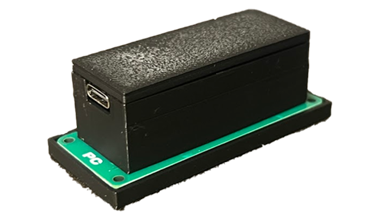
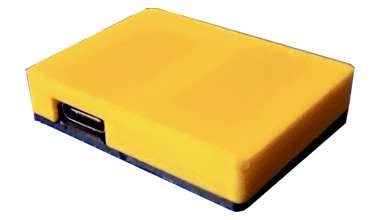
3x female-female jumper wires OR One RiiDraw adapter
You don't need wires AND the adapter. Just one or the other.
RiiDraw AdapterWires (Amazon)
3. Wiring Guide
You need to link the 2 microcontrollers together. You can do this with either 3 wires or the RiiDraw adapter.
Method A (3 Jumper Wires)
Using female-to-female wires, connect Pin 0 on the first board to Pin 1 on the second. Then connect Pin 1 on the first to Pin 0 on the second. Finally, connect the GROUND pins to each other.


Method B (RiiDraw Board)
Line up the pins and press the boards into the sockets with the USB ports facing out.


4. Flashing Firmware
If you bought an all-in-one device, you do not need to do this step. They are preflashed and ready to use.Each microcontroller needs specific firmware. One will act as the PC board, and the other will act as the Switch board.
Flashing Instructions (One-time setup)
- Open RiiDraw
- Hold the BOOT button on your first microcontroller while plugging it into your PC. The "Flash firmware" buttons will appear in the app.
- Click "PC" to flash it with the PC firmware.
- Unplug first device, and hold the BOOT button on the second microcontroller while plugging it into your PC.
- Click "Switch" to flash it with the Switch firmware.
- Now both microcontrollers have the correct firmware.
5. Using RiiDraw
Plug the PC board into your computer and the Switch board into your Switch. Launch the RiiDraw app on your PC.

Turn on Pro Controller Wired Communication
You must enable "Pro Controller Wired Communication" on your Switch. Here's a link explaining how to do that by Nintendo.
- From the HOME Menu select System Settings, then select Controllers & Accessories on Nintendo Switch 2 or Controllers and Sensors on Nintendo Switch.
- Select Pro Controller Wired Communication to enable this feature. Select it again to disable it.
Turn on Pro Mode in-game
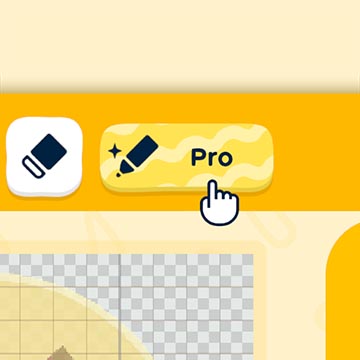
Be sure to enable "Pro Mode" on the paint screen in-game

Connect Devices to PC and Switch
Plug the PC board into your computer via USB, and the Switch board into your Switch.

Connect to Switch
Launch the RiiDraw app on your computer.
A virtual gamepad should show up in RiiDraw. You can use this to manually interact with the game.
Use the virtual controller on-screen to fully connect to the Switch by pressing "A" to clear the screen.

Load Image
Drop an image into the app and adjust settings to your liking. You can choose from different mattes if you're making a design for items or clothing.

Draw!
Press the "Draw" to begin! RiiDraw will automatically start moving the cursor around to calibrate itself, change to the pencil, select color, and begin drawing!

How long will it take?
This process can take a while. From a few minutes up to several hours. So make sure your system is charged or you are docked.
Images with flat colors can go much faster than highly detailed ones. And high dithering will slow things down too.
6. FAQ
How can I make it faster?
Lower the colors used. Also try drawing the image at half-size and then scaling it up in-game. Since the game applies a smoothing filter, it can look pretty good still.
Also images with flat colors can go much faster than highly detailed ones.
Can I use a different microcontroller?
Right now it only works with RP2040-based boards. And only the RP2040-Zero & clones will fit the RiiDraw adapter.
The RiiDraw adapter board is compatible with the 2WiCC/GLaMS open source project if you want to use that for other things beyond Tomodachi Life.
Does this work with Switch 2?
Yes. In fact it's faster on Switch 2. Just make sure to check the box in app to get the best performance on Switch 2.
Do I need to mod my system? Can I get banned?
This does NOT modify your system and cannot get you banned.
Do I need to buy the RiiDraw board?
No. The wire method works fine. You could also solder or use a breadboard. The RiiDraw board is just for convenience.